1Getting started
OtoWash connects you with trusted car-care shops near you. Get the app, create your account, and you're ready to book your first wash.
Download & open OtoWash
Get the OtoWash app free from the Google Play Store (Android) or the Apple App Store (iPhone). Search for OtoWash, install it, then open the app. On the welcome screen, tap Sign up to create a new account.
Create your account
Tap Sign up and fill in your full name, mobile number, email address, and a password. Use a number you can receive SMS on — that's how we confirm it's really you. Tap Continue / Register when done.
Verify your mobile number
We text you a one-time code (OTP) by SMS. Type the code into the verification screen and tap Verify. Didn't get it? Wait a few seconds, check your signal, then tap Resend code.
Allow location (recommended)
When the app asks for location, tap Allow / While using the app. This lets OtoWash show the nearest shops and accurate distances. You can change this later in your phone's Settings.
You're in
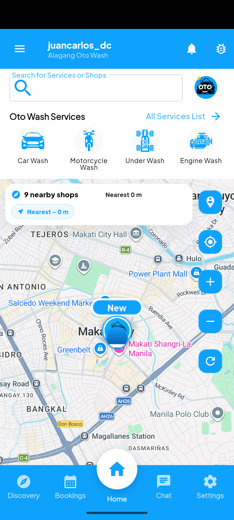
You'll land on the home screen. From here you can discover shops, see active bookings, and reach your wallet, rewards, and profile through the bottom menu and the app menu.
Log in (returning users)
Already have an account? On the welcome screen tap Log in, enter your mobile number or email and your password, then tap Log in. Where supported, you can switch on biometric login later so you sign in with your fingerprint or face.
Forgot your password?
On the login screen tap Forgot password. Enter the email or mobile number on your account and tap Send. Open the reset link / code we send, choose a new password, then log in with it.
2Finding a car wash
OtoWash shows shops around you on a map and as a list, with ratings, services, and prices, so you can compare before you book.
Browse nearby shops
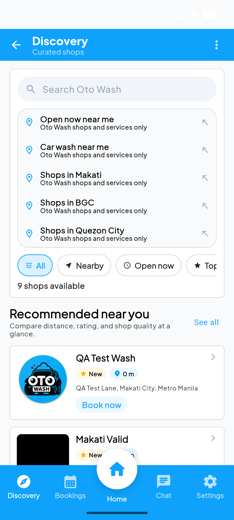
On the Home / Explore tab, scroll the list of shops near you or pan and zoom the map. Each card shows the shop name, distance, star rating, and starting price so you can compare at a glance.
Search by name or area
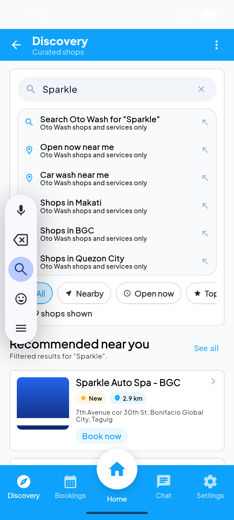
Tap the search bar at the top and type a shop name or a place (e.g. a barangay or city). Results update as you type — tap any result to open it.
Filter your results
Use the filters to narrow shops by service type (for example body wash or interior detailing) or by whether the shop offers home / off-site service that comes to you. Clear the filters any time to see everything again.
Open a shop
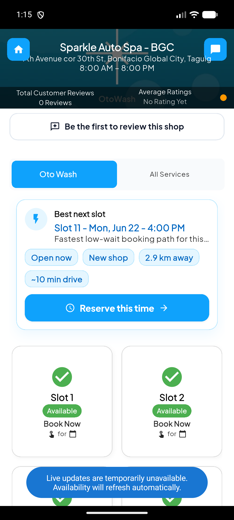
Tap a shop card to see its full page: photos, services and packages with prices, opening hours, available time slots, and reviews from other customers.
Read the services, prices & hours
Scroll the shop page to compare services and packages. Prices can vary by vehicle size. Check the opening hours and slot calendar so you pick a time the shop is open and has space.
Check the reviews
Scroll to the Reviews section to read star ratings and comments from past customers. This is the quickest way to judge quality before you book.
3Booking a wash
Booking takes about a minute: pick what you want, choose your vehicle and a time, then confirm.
Choose a service or a package
On the shop page, tap a single service (e.g. Express Body Wash) to select it, or pick a bundled package for several services at one price. Selected items are highlighted and added to your booking total.
Add more than one service (optional)
Want a fuller clean? Tap additional services to add them. The running total updates as you go. Remove any item by tapping it again.
Pick your vehicle
Choose a vehicle you've already saved. Don't have one yet? Tap Add vehicle and enter the make, model, plate number, and colour. Prices may change with vehicle size, so the total may adjust after you pick.
Choose a date & time slot
Open the calendar, pick a date, then tap an available time slot. Greyed-out slots are full or in the past. Your chosen slot is held while you finish.
Set the address (home / off-site service)
If the shop comes to you, choose where. Pick a saved address or tap Add address and set it manually or by map/GPS. Make sure it's reachable and accurate so the team arrives at the right spot.
Add special instructions (optional)
Use the notes / instructions field to tell the shop anything helpful — gate code, a stubborn stain, "please don't use the hose on the engine bay," and so on.
Review & confirm
Check the summary — shop, service or package, vehicle, date and time, address (if home service), and total price. When it looks right, tap Confirm booking.
Confirmation screen
You'll see a thank-you / confirmation with your reference number. The booking now appears under the Bookings tab, and you'll be notified when the shop approves it.
4Tracking your booking
After you book, the Bookings tab keeps you updated from request to completion.
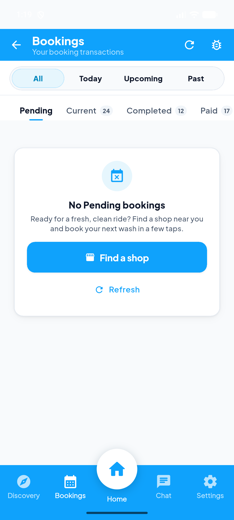
Open the Bookings tab
Tap Bookings in the bottom menu to see all your bookings, newest first. Each row shows the shop, service, date/time, and current status.
Filter by status
Use the status filter (e.g. Pending, Approved, In service, Completed) to find a booking quickly. Switch back to All to see everything.
Open a booking for details
Tap any booking to see the full details: services, vehicle, slot, address, total, and the latest status updates.
| Status | What it means |
|---|---|
| Pending | The shop has received your request and is confirming it. |
| Approved | Your slot is locked in. Head over, or get ready for the team to arrive. |
| In service | Your wash is underway. |
| Completed | All done — time to rate the wash and collect your OtoPoints. |
Reschedule a booking
Open the booking and tap Reschedule (available while it's pending or approved). Pick a new date and time slot, then confirm. The shop is notified of the change.
Cancel a booking
Open the booking and tap Cancel. Any cancellation terms are shown before you confirm. Once cancelled, the slot is released and the status updates.
5After your wash
Once a wash is completed, share feedback — and if something wasn't right, ask for a redo or a refund.
Leave a star rating & review
Go to Bookings → Completed and open the wash. Tap the stars to rate it, add an optional comment, then tap Submit. Your review appears on the shop's page and helps other customers.
Request a redo (if you're not happy)
If the result wasn't up to standard, open the completed booking and choose Request redo where offered. Describe the issue so the shop can make it right. The shop reviews your request and responds.
Request a refund
For a paid booking, open it and tap Request refund where available. Enter the reason and submit. You can track the refund status — typically Requested → Under review → Approved/Declined — from the same booking.
6Payments & OtoWallet
Pay the way that suits you — and keep a balance in your in-app OtoWallet for faster checkouts.
Choose how to pay
At checkout, or when the wash is completed, pick Cash, GCash, Card, or pay from your OtoWallet. Cash and e-wallet payments are settled directly with the shop. Confirm the amount, then complete the payment.
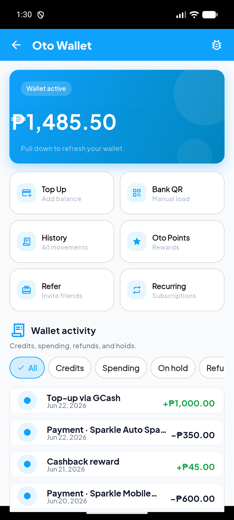
Open your OtoWallet
From the app menu or bottom menu, tap Wallet. Your current balance is shown at the top, with your transaction history below.
Top up your wallet
Tap Top up, choose or type an amount, and follow the on-screen instructions — for e-wallet top-ups you may scan a QR code or confirm in your payment app. Your balance updates once the payment clears.
Pay from your balance
When paying for a wash, select OtoWallet to deduct from your balance — no cash to handle and no card details to re-enter.
View transactions & receipts
Every top-up and payment is listed on the wallet screen with date, amount, and reference. Tap an entry to view its receipt / details. Receipts are kept in the app so you always have a record.
7OtoPoints & loyalty
You earn OtoPoints every time you complete a wash. Collect points, climb loyalty tiers, and redeem rewards.
Earn automatically
Points are added to your balance when a booking is completed and paid — no codes to enter. Your current points and tier appear on the Rewards / OtoPoints screen.
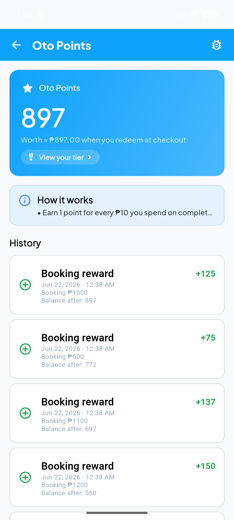
View your balance & history
Open the OtoPoints / Rewards screen to see your total points and a history of how you earned and spent them.
Climb loyalty tiers
The more you wash, the higher your loyalty tier. Your tier and how close you are to the next one are shown on the rewards screen — keep booking to level up.
Redeem your points
Where redemption is available, choose an eligible reward or apply points toward a payment, then confirm. Your balance updates and the activity is logged in your points history.
Earn
Get points on every completed, paid wash.
Climb tiers
The more you wash, the higher your loyalty tier.
Redeem
Use points toward eligible rewards and perks.
8Your vehicles
Save your cars once, then pick one in seconds every time you book. Manage them all from your profile.
Open your vehicles
Tap Profile, then Vehicles / My Vehicles to see every car you've saved.
Add a vehicle
Tap Add vehicle and enter the make, model, plate number, and colour. You can also add a photo of the vehicle. Tap Save.
Edit a vehicle
Tap a saved vehicle, change any detail (or swap the photo), then tap Save to update it.
Set a default vehicle
Mark your most-used car as Default so it's pre-selected at booking — one less tap each time.
Delete a vehicle
Open the vehicle and tap Delete, then confirm. It's removed from your list and won't appear at booking.
9Your addresses
Save your go-to locations for home-service bookings, so the team always knows exactly where to come.
Open your addresses
Tap Profile, then Addresses / My Addresses to see your saved locations.
Add an address
Tap Add address. Enter it manually, or use the map / GPS to drop a pin at your exact spot. Add landmarks or unit details to make it easy to find.
Label it
Give the address a label such as Home or Work so you can pick the right one fast when booking home service.
Edit an address
Tap a saved address, update the details or move the map pin, then tap Save.
Set a default address
Mark one as Default so it's pre-selected for home-service bookings.
Delete an address
Open the address and tap Delete, then confirm to remove it.
10Messages
Need to confirm a detail with a shop? Chat with them right inside the app.
Open a chat
From a booking or the shop's page, tap Message / Chat to start a conversation with that shop. Your chats are also reachable from the app menu where available.
Send a message
Type in the message box and tap Send. Use chat to ask questions, share your arrival time, or clarify special instructions.
Send a photo
Tap the attach / camera icon to send a photo — handy for showing a specific stain, the vehicle, or where to find your parking spot.
11Profile & settings
Manage your details, security, notifications, and preferences from Profile and Settings.
Edit your profile
Tap Profile, then Edit to update your name, email, mobile number, or profile photo. Tap Save to apply your changes.
Manage notifications
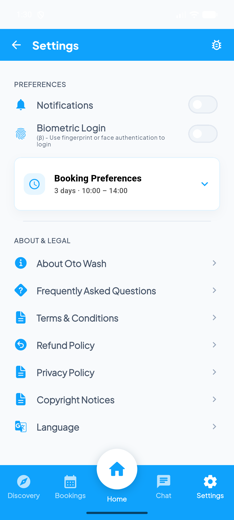
In Settings → Notifications, turn booking updates, reminders, and offers on or off so you hear about what matters to you.
Change the language
In Settings → Language, pick your preferred language. The app updates straight away.
Enable biometric login
In Settings → Security, switch on biometric login (fingerprint or face) where your device supports it, so you sign in faster and more securely. You can also change your password here.
Get help & support
In Settings → Help & support, browse the in-app FAQ or reach the OtoWash team if you need a hand with a booking, payment, or your account.
Read the legal documents
In Settings, open Terms of Service and the Privacy Policy to see how OtoWash works and how your data is handled.
Delete your account
If you ever want to leave, go to Settings → Delete account and follow the confirmation steps. This permanently removes your account, so make sure you've used any wallet balance first.
Log out
Tap Log out from the app menu or Settings when you're done, especially on a shared device.
12FAQ & troubleshooting
No shops are showing near me.
Make sure location access is on (your phone's Settings → allow location for OtoWash) and you have an internet connection, then pull down to refresh. OtoWash is rolling out to more areas — try searching a nearby city or area name.
I didn't get my OTP / verification code.
Check your signal and that the mobile number is correct, wait a few seconds, then tap Resend code. If it still doesn't arrive, confirm the number under Profile or contact the OtoWash team from Settings → Help.
My booking is still "Pending".
The shop is confirming your slot. You'll get a notification the moment it's approved. If it stays pending well past your slot time, cancel and rebook, or message the shop from the booking page.
Can I change or cancel a booking?
Yes — open the booking and tap Reschedule or Cancel while it's pending or approved. Any cancellation terms are shown before you confirm.
Prices changed after I picked my vehicle.
That's normal — many shops price by vehicle size, so the total adjusts to your selected vehicle. The final price is always shown on the review screen before you confirm.
I didn't get my OtoPoints.
Points post once a booking is marked completed and paid. If it's completed and you still don't see them after a short while, contact support from Settings → Help.
A top-up didn't reflect in my wallet.
Give it a moment and refresh the wallet screen. If the amount was charged but not credited, contact the OtoWash team with your top-up reference number.
How do I get a refund or a redo?
Open the completed booking and choose Request refund or Request redo where offered, add the reason, and submit. You can follow the status from the same booking.
I forgot my password.
Tap Forgot password on the login screen, enter your email or mobile number, and follow the reset instructions we send.
How do I contact a shop?
Open the shop's page or your booking and tap Message / Chat to reach them directly in the app — you can send text and photos.
+Advanced & optional features
Depending on your area and account, you may see extra features in the app. Here's a quick tour of what they do.
Subscriptions
Set up recurring washes (e.g. weekly or monthly) so your car stays clean on autopilot.
Flash Deals
Limited-time discounts from nearby shops — grab them while they last.
Vehicle Passport
A service history for each vehicle, so you can see what's been done and when.
OtoWash Advisor
Personalised recommendations on services and timing based on your car and habits.
Fleet & multi-vehicle
Book several vehicles at once and share a driver QR for easy drop-off and check-in.
Flood-care & home questionnaires
Quick questionnaires for flood recovery or home-service jobs so the shop arrives prepared.
Rain Guarantee
Where offered, file a claim if rain spoils your wash soon after service.
Disputes
Raise a dispute on a booking if something can't be resolved with the shop directly.
Achievements & badges
Collect shareable badges as you reach milestones with OtoWash.