What's inside
- Getting started
- Set up your shop
- Add services & packages
- Hours, slots & capacity
- Manage bookings
- Walk-ins & POS
- Add & manage your staff
- Reports & insights
- Marketing & promotions
- Reviews & ratings
- Refunds
- Wallet & payouts
- Your dashboard at a glance
- Settings & notifications
- FAQ & troubleshooting
- Advanced & optional features
1Getting started
OtoWash brings paying customers straight to your car-care business. Register as a shop owner, set up your shop, and start accepting bookings — usually within an afternoon.
Download & open the Shop Owner app
Get the OtoWash Shop Owner app free from the Google Play Store or the Apple App Store. Open it — first-time owners tap Register to create an account; returning owners tap Log in.
Register as a shop owner
On the register screen, enter your full name, mobile number, and email address, then set a password. Tap Register to continue.
Verify with the OTP code
OtoWash sends a one-time passcode (OTP) to your mobile number by SMS. Type the code into the verification screen and tap Verify. Didn't get it? Wait for the timer, then tap Resend code — and double-check the number you entered.
Log in
Already registered? Tap Log in and sign in with your mobile number or email plus your password. Where your phone supports it, you can switch on biometric login (fingerprint or Face ID) for faster sign-ins later.
Forgot your password?
On the login screen tap Forgot password, enter your registered mobile number or email, and confirm with the OTP we send. Then set a new password and log in.
Finish first-time onboarding
The first time you sign in, OtoWash walks you through a short setup so customers can find you: create your shop, set your hours, and add a service or two. Follow the on-screen prompts — you can refine everything later. When onboarding is done, you land on your dashboard.
Land on your dashboard
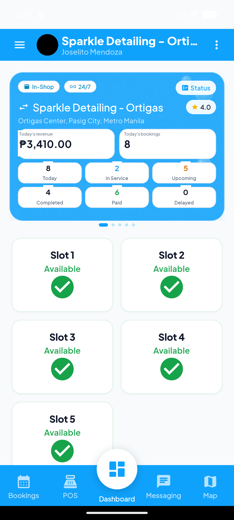
The dashboard is your daily command centre — today's revenue, today's bookings, the jobs in progress, and the slots you're serving. We cover every tile in section 13.
2Set up your shop
Before customers can find and book you, create your shop profile. You can run an in-shop business that washes vehicles at your location, or an off-site / mobile business that travels to the customer's address — or both, as separate shops.
Open your shops
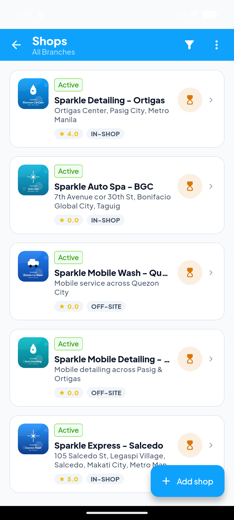
From the dashboard, go to Shops. This lists every shop and branch on your account. Tap Add shop to create a new one.
Choose your shop type
Pick In-shop if customers drive to your location, or Off-site / mobile if you travel to the customer. This affects how bookings show the service address, so choose the one that matches how you operate.
Enter your shop details
Add your shop name, address (pin it on the map so customers get accurate directions and distance), and a contact phone number. Keep the name clear and recognisable — it's how you'll appear in the customer app.
Set your operating hours
Add an opening and closing time for each day of the week, and mark any day you're closed. Open around the clock? Switch on 24-hour operation so customers can book any time.
Add a cover photo & gallery
Upload a bright, well-lit cover photo plus a few gallery shots of your shop and your work. A strong cover photo is the single biggest thing that makes drivers tap your shop in the customer app.
Save & go live
Tap Save. Once your shop has hours, at least one service, and bookable slots, it can appear to nearby customers. Add your menu next (section 3).
Add more branches
Got more than one location? Repeat Add shop for each branch. Every shop keeps its own hours, menu, staff, and reports.
Switch shops with the selector
Use the shop selector at the top of the dashboard to switch between your shops. Every screen — bookings, POS, reports, staff — then shows data for the selected shop.
3Add services & packages
Your menu is what customers book. Add individual services first, then bundle the popular ones into discounted packages to raise your average sale.
Open your menu
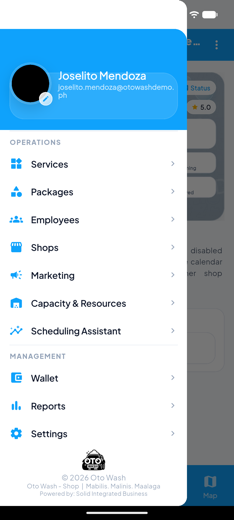
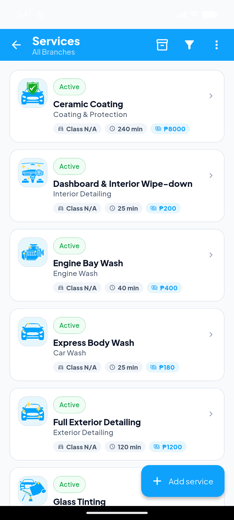
From the dashboard tap Menu. This is the hub for your Services and Packages.
Add a service
Tap Services → Add service. Enter a clear name (e.g. "Express Body Wash"), a short description, a price, and an estimated duration in minutes.
Set prices by vehicle size
Prices can vary by vehicle size. Set the right amount for small, medium, and large vehicles so a sedan and an SUV are quoted correctly. Customers see the price that matches the vehicle they choose.
Save the service
Tap Save. The service is now bookable and appears in your menu and in the customer app for the selected shop.
Edit or delete a service
Tap any service to update its name, description, price, or duration, then Save. To remove it, open the service and tap Delete. Changes apply to new bookings right away; existing bookings keep the price they were made at.
Bundle a package
Go to Packages → Add package, give it a name (e.g. "Full Detail Combo"), and select the services it includes — for example Body Wash + Interior Vacuum + Tyre Black. Set a bundled price below the sum of the parts so customers see the saving.
Edit a package
Tap any package to add or remove services, adjust the price, or update the description. Save to apply.
| Field | What it does |
|---|---|
| Name | What customers see in the menu — keep it short and clear. |
| Description | A line or two on what's included, so customers know what they're getting. |
| Price (by size) | The amount charged, set separately for small / medium / large vehicles. |
| Duration | How long the job takes — the app uses this to size your slots. |
4Hours, slots & capacity
Slots control when and how many customers can book, so they only choose times you can actually serve.
Confirm your operating hours
Bookable times follow the operating hours on your shop. If your hours change, update the shop first (Shops → your shop → operating hours) — slots follow automatically.
Define your time slots
Set the time slots customers can book within your open hours. Slots line up with your service durations so every booking has enough time to be done properly.
Set your capacity
Choose how many vehicles you can handle at the same time. When a slot reaches that number, the customer app greys it out so no one can double-book a time you can't serve.
Review and adjust
Watch your dashboard for a few busy days. If you're turning away demand, raise capacity or extend hours; if customers wait too long, trim it. Adjust any time and changes apply to future bookings.
5Manage bookings
The Bookings screen is where you run your day. Approve requests, start jobs, mark them complete, reschedule when needed, and assign work to your team.
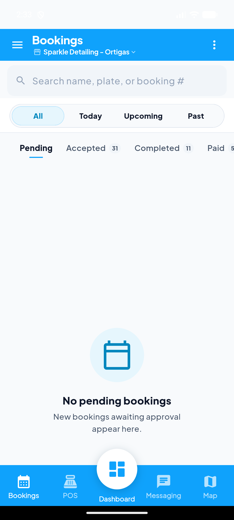
Review pending requests
New requests land in the Pending tab. Open a card to see the customer, vehicle, service or package, time, and (for mobile shops) the address.
Approve or reject
Tap Approve to confirm the booking and lock the slot, or Reject if you can't take it (you can add a short reason). Approving fast keeps customers happy and frees the slot for service.
Start the job
Once a booking is Accepted and the vehicle arrives, open it and tap Start to move it into service. The status updates for the customer in real time.
Complete & collect
When the wash is done, tap Complete. The customer is notified, payment is settled, and any loyalty points are awarded.
Reschedule a booking
Need to move a job? Open the booking and choose a new available date and time. The customer is notified of the change. Use this instead of rejecting when you simply need a different slot.
Search & filter
Use the search bar to find a booking by customer, vehicle, or reference, and the filter chips / tabs (Pending, Accepted, In service, Completed, Past) to focus the list.
Assign jobs to workers
Open a booking and assign it to a worker so every job has a clear owner. The assigned worker sees it in the OtoWash Worker app, and you can track who's on what.
Booking statuses
| Status | What it means | Your action |
|---|---|---|
| Pending | A customer has requested this slot and is waiting on you. | Approve or Reject |
| Accepted | You've confirmed the booking and the slot is locked in. | Start when the vehicle arrives (or Reschedule) |
| In service | The wash is underway. | Complete when finished |
| Completed | The job is done and payment is settled. | Nothing — it moves to history |
| Rejected / Cancelled | The booking won't go ahead. | View for your records |
| Past | An older completed or closed booking. | View for your records |
6Walk-ins & POS
Not every customer books ahead. Use the built-in POS to record walk-in customers, take payment on the spot, and keep your figures accurate.
Ring up a walk-in
Open POS, pick the services or package the customer wants, apply any discount, and take payment. The sale is recorded just like a booking — so it counts toward your dashboard and reports.
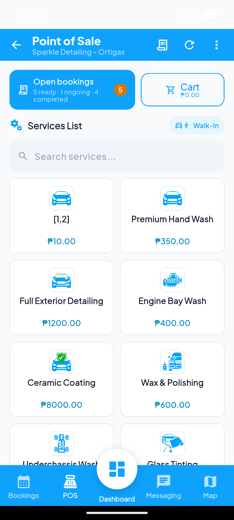
Open POS
From the dashboard tap POS (point of sale). Confirm you're on the right shop in the selector first.
Add the vehicle & services
Choose the vehicle size if asked, then tap the services or package the customer wants. Prices follow your menu, including any vehicle-size pricing, and the running total updates as you go.
Apply a discount
Need to discount the sale? Apply a discount (amount or percent) before payment. The total adjusts so the receipt and your reports match what was actually collected.
Take payment
Select the payment method, collect from the customer, and tap to mark it paid. The sale is captured immediately.
Print or share the receipt
After payment, print the receipt or share it with the customer (e.g. by message). Handy for fleet drivers and anyone who needs a record.
View POS history
Open the POS history to review past walk-in sales, look up a receipt, and reconcile your day.
7Add & manage your staff
Bring your team onto OtoWash so they can pick up jobs and you can see who's doing what. Workers — your washers and detailers — use the separate OtoWash Worker app, while front-desk staff can get a limited sign-in to help you run the counter.
Open staff management
Go to Settings → Staff (or your shop's Staff / Workers section). This lists everyone on the selected shop.
Add a worker
Tap Add worker and enter their name, mobile number, their skills (the services they're qualified for), and their pay details if you track them. Save to add them to the shop.
Add a front-desk sub-account
Need someone to handle bookings and walk-ins without full owner access? Add a front-desk staff member. They get a limited sign-in — enough to manage the counter, not your whole account.
Share the Worker app
Ask your workers to install the OtoWash Worker app and sign in with the details you added. They'll then see the jobs assigned to them.
Edit or deactivate
Tap any staff member to update their details, change their skills, or deactivate them when they leave. Deactivating immediately removes their access — no need to delete history.
Assign & track jobs
From the Bookings screen, assign jobs to your workers so each booking has a clear owner and nothing slips through. You can see who's handling what at a glance.
| Role | What they can do |
|---|---|
| Owner (you) | Full access — shops, menu, bookings, POS, staff, reports, marketing, refunds, wallet. |
| Front desk | Limited access to run the counter — manage bookings and walk-ins for the shop. |
| Worker | Uses the OtoWash Worker app to see and complete the jobs assigned to them. |
8Reports & insights
Know how your business is doing at a glance. The Reports screen turns your bookings and walk-ins into clear numbers and trends.
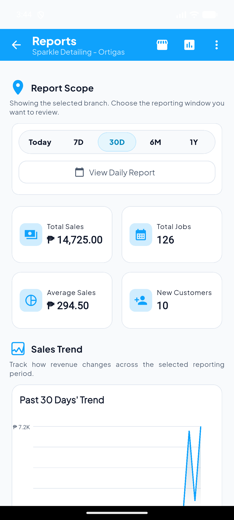
Total Sales
Your revenue over the chosen period.
Total Jobs
How many washes you completed.
Average Sale
Your typical spend per job.
New Customers
First-time customers you won.
Open Reports
From the dashboard tap Reports. Make sure the shop selector shows the shop you want — reports are per shop.
Pick a date range
Switch between Today, 7D, 30D, 6M, and 1Y to see the period you care about. Every tile and the trend chart update to match.
Read the trend
The sales trend chart shows whether you're climbing or dipping over time. Use it to spot your busiest days and plan staffing and promotions around them.
Export your figures
Export the report to keep a record or hand it to your accountant. Pick the range first so the export covers exactly the period you need.
9Marketing & promotions
Fill quiet slots by promoting your shop and offering deals to nearby customers — right from the app.
Open Marketing
Tap Marketing to create vouchers, run promotions to reach drivers in your area, and see how your campaigns are doing.
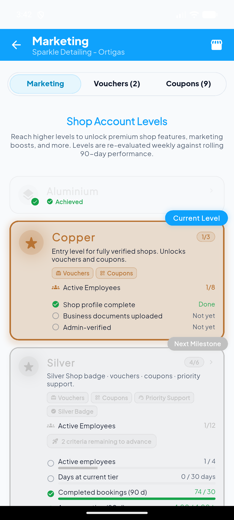
Create a voucher or coupon
Tap Create voucher, choose the discount (amount or percent), set any conditions (which services it applies to, a minimum spend, a usage limit), and a valid-from / valid-until window. Save to make it live.
Run a promotion
Launch a promotion to put your shop and offer in front of nearby customers. A strong cover photo and a well-priced package make every promotion work harder.
Share your offer
Share the voucher or your shop with customers directly (e.g. by message or social) to drive bookings during your slow hours.
View campaign results
Check your campaign results to see redemptions and the bookings each offer brought in, so you know what to repeat.
Pause or end an offer
Hit your goal early? Open the voucher or promotion and pause or end it any time.
10Reviews & ratings
After a completed wash, customers can rate your shop and leave a review. Your rating is one of the first things drivers see, so it's worth staying on top of.
Read your reviews
Open Reviews (from your shop or Settings) to see customer ratings and comments, newest first.
Respond to a review
Tap a review and write a short, friendly reply — thank the customer, or acknowledge an issue and say how you'll fix it. A calm, professional response reassures future customers.
Watch your rating
Keep an eye on your average rating over time. A dip is a signal to check your service quality, wait times, or pricing.
11Refunds
Sometimes a job needs to be put right with a refund. You can respond to a customer's refund request or start a refund yourself.
Open the refunds area
Go to your Refunds section (from Settings or the relevant booking). You'll see any pending customer requests and the option to start a new refund.
Review a customer request
Open the request to see the booking, the amount, and the customer's reason. Check it against the job before deciding.
Approve or reject
Tap Approve to process the refund, or Reject with a short reason if it isn't warranted. The customer is notified of your decision.
Start an owner refund
Want to refund proactively (e.g. you couldn't finish a job)? Open the booking, choose Refund, confirm the amount and reason, and process it.
Keep your records
Refunds adjust your sales figures, so your reports stay accurate. Review past refunds any time for your records.
12Wallet & payouts
Your Wallet shows your earnings and lets you set up where your money lands.
Open your Wallet
Go to Wallet to see your current balance for the selected shop.
Review your transactions
Scroll the transaction history to see what's been credited and debited — sales, refunds, and payouts — so your numbers always add up.
Set up your payout details
Add or update your bank / payout details so your earnings can be settled to you. Enter them carefully — accurate details mean smooth, on-time payouts.
Track payouts
Watch your payouts in the transaction history. If a figure looks off, cross-check completed jobs and refunds for the same period in Reports.
13Your dashboard at a glance
Your dashboard is the first thing you see each day. Here's what each tile tells you.
| Tile | What it shows |
|---|---|
| Shop selector | The shop you're viewing — tap to switch between your shops or branches. |
| Today's revenue | What you've earned so far today across bookings and walk-ins. |
| Today's bookings | How many jobs are on your plate today. |
| Today | Jobs scheduled for today. |
| In service | Washes currently underway. |
| Upcoming | Approved jobs still to come. |
| Completed | Jobs finished today. |
| Paid | Jobs that have been settled. |
14Settings & notifications
Manage your account, your shop details, and how OtoWash keeps you informed from Settings.
Update your profile
Open Settings → Profile to change your name, email, mobile number, and password. Keep your contact details current so OTPs and alerts reach you.
Set your notification preferences
Under Notifications, choose what you want to be alerted about — new bookings, reschedules, reviews, and more — so you can act fast.
Manage shop details & staff
Shop details lets you update name, address, hours, photos, and shop type any time; Staff lets you add or remove team members and manage access.
Security
Change your password, and switch on biometric login (fingerprint or Face ID) where your device supports it.
Get help
Help & support reaches the OtoWash team whenever you need a hand.
Log out
Tap Log out to sign out — useful on a shared device. Sign back in with your number/email and password (or biometrics).
15FAQ & troubleshooting
A booking is stuck in "Pending".
Pending means it's waiting on you. Open Bookings → Pending, review the request, and tap Approve to confirm it or Reject if you can't take it. Keeping notifications on helps you catch new requests the moment they arrive.
How do I add a second branch?
Go to Shops and tap Add shop to create another location with its own name, address, hours, menu, and staff. Switch between locations any time using the shop selector at the top of the dashboard.
How do I change my hours?
Open the shop in Shops (or Settings → Shop details) and update your operating hours — including switching on 24-hour operation. Your bookable slots follow these hours automatically.
A worker can't log in.
Workers sign in to the separate OtoWash Worker app, not the Shop Owner app. Check that you've added them in Settings → Staff, that their account is active (not deactivated), and that they're using the correct mobile number. Re-check their access if the issue continues.
How are payments settled, and where do I see my earnings?
When you mark a job Complete (or take a walk-in in POS), the sale is recorded and any loyalty points are awarded. Cash and e-wallet payments are collected with the customer at your shop. Your earnings show in Wallet (balance and transactions) and across your Reports and dashboard. Add your payout details in Wallet so settlements aren't delayed.
How do I refund a customer?
Open your Refunds section. To answer a customer request, open it and tap Approve or Reject. To refund proactively, open the booking, choose Refund, confirm the amount and reason, and process it. Refunds adjust your sales figures automatically.
My prices look wrong for some vehicles.
Prices can vary by vehicle size. Open Menu → Services, tap the service, and check the price you've set for small, medium, and large so quotes come out right.
Today's revenue looks off.
Make sure every finished job has been marked Complete and paid, and that walk-ins were rung up in POS. Pull down to refresh, confirm you're viewing the correct shop in the selector, and remember refunds reduce the figure.
My shop isn't showing to customers.
Customers can only see a shop that has operating hours, at least one service, and bookable slots. Confirm all three are set for the shop, and that your address pin is accurate so it appears for nearby drivers.
I didn't get my OTP code.
Wait for the timer to finish, then tap Resend code. Double-check the mobile number you entered, make sure you have signal, and check your SMS inbox. If it still doesn't arrive, try again shortly or reach the OtoWash team from Settings → Help & support.
16Advanced & optional features
OtoWash includes powerful optional modules for larger shops and detailing operations. These appear in your app only where enabled for your account — here's what each one does.
Scheduling & capacity
- Capacity engine & resources — model your real capacity by bays, equipment, and people so slots reflect what you can truly handle.
- Scheduling assistant — get smart suggestions for slotting jobs to keep your day flowing and reduce gaps.
- Peak-hour pricing — charge more during your busiest windows and encourage off-peak bookings.
- Smart arrival windows — give customers a realistic arrival window instead of a single fixed time.
- Slot templates — save and reuse slot patterns across days and shops instead of setting them by hand.
Operations & jobs
- Checklist templates — standardise each service with a step-by-step checklist your team follows.
- Change orders — add extra services or adjust a job mid-wash with the customer's agreement, and bill correctly.
- Queue board — a live board of jobs in the queue, in service, and ready, ideal for a counter or wall display.
- Mobile dispatch & technician kit — route and dispatch mobile jobs, with an on-the-road toolkit for your technicians.
Inventory & finance
- Inventory, recipes & job-cost / margins — track supplies, define how much each service consumes, and see your true cost and margin per job.
- Supplies / B2B ordering — reorder consumables and supplies from within the app.
- Profit & Loss (P&L) — a fuller financial picture beyond sales, factoring in your costs.
- Corporate invoicing — issue invoices for fleet and corporate accounts that don't pay per visit.
Safety, compliance & network
- Worker Safety & Compliance suite — log incidents, manage PPE, store safety data sheets (SDS), and track worker skills and assessments.
- Oto Care provider network — connect with the wider OtoWash care network for referrals and overflow.
- Oto ID (OtoOps) link — link your shop to OtoOps for cross-platform identity and operations management.
Start taking bookings on OtoWash
Set up your shop, list your services, and let nearby customers book you in minutes.
Get the app